> ## Documentation Index
> Fetch the complete documentation index at: https://plain-mattvagni-patch-1.mintlify.site/llms.txt
> Use this file to discover all available pages before exploring further.
# Quickstart
> Everything you need to know to start supporting your customers with Plain.
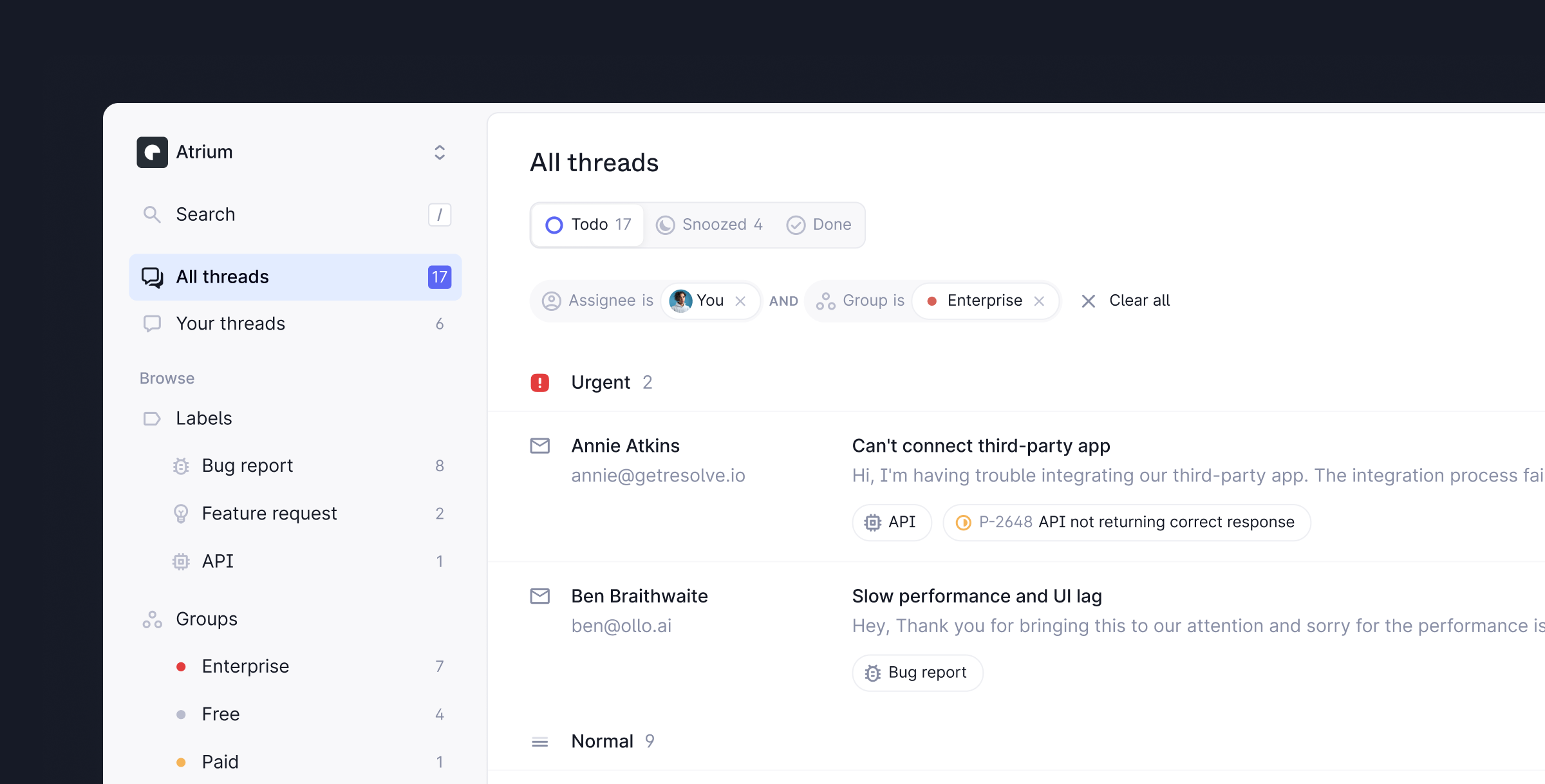
Plain is the fastest, most powerful support platform for B2B startups. It's got everything you need to help your customers in a modern, collaborative, and consolidated platform.
This quickstart guide will walk you through how to set up your workspace and start helping your customers.
### The basics
Everything in Plain happens in your team's workspace. To create a workspace for your team, sign up at [https://app.plain.com](https://app.plain.com) and click **Create a workspace**.
To start answering customer requests in Plain, you should begin by connecting your Slack and/or email:
**Slack** - Our Slack integration lets you sync messages from selected Slack channels to Plain and respond directly to customers from the platform. [Learn more about setting up Slack with Plain](/slack).
**Email** – You can link your support email and start receiving customer request in minutes. For more information on how to connect your email addresses to Plain, [check out the docs](/email/)
You can also build a totally on-brand [support portal](/headless-support-portal/) and [in-app forms](/contact-forms/) to match your branding and UI, and structure your support queries.
To add team members to your Plain workspace and assign roles, navigate to **Settings** →
**Members** in your workspace. You can add your entire team to Plain for free - we'll only charge
you for users that actively send messages to customers.
To make sure your team gets notified of new support requests, [set up notifications](/notifications).
We recommend, as a minimum, setting up one shared Slack or Discord channel where new support requests are posted. We also recommend setting up personal notifications so you can be notified of new replies and activity on threads you are assigned to.
[Connecting your Linear workspace](/integrations/linear) to Plain will let you quickly and seamlessly log bugs and feature requests to Linear without leaving Plain and then close the loop with the customer once they're completed.
You can connect to Linear by selecting your workspace name in the top left hand side of your Plain workspace, and selecting **Settings** → **Linear**.
### Speed up your workflow
Labels are a lightweight but powerful way to categorize threads in Plain. You can configure the labels that make sense for you in **Settings** → **Labels**.
[**Add labels**](/labels/)
Snippets are templated messages that allow you to pull common language to message customers more
quickly. You can configure them in **Settings** → **Snippets**
[**Set up snippets**](/snippets/)
An autoresponder can be useful in situations of acute support load, such as during incidents, or to confirm you received a support request and manage expectations with customers.
[**Set up auto-responses**](/auto-responses/)
We make it easy to fly through your workflow without ever needing to use a mouse. Learn about our
keyboard shortcuts here. We've also added hints throughout the app on which keyboard shortcuts to
use.
[**View all shortcuts**](/shortcuts/)
### Organize your workspace
In Plain you can see what company a customer belongs to, so you have more context when providing support.
[**Learn more about companies**](/company-support/)
You can organize your customers to mirror how your product is structured. For example, if in your product all of your customers belong to a team/org/account/workspace then you would create a tenant per team/org/account/workspace.
[**Learn more about tenants**](/tenant-support/)
Tiers add support for defining SLAs so you can enforce a first-response time for different support tiers within your product or pricing.
[**Learn more about tiers**](/data-model/)
When configuring an SLA you can set when you want to be warned of a breach. For example if your first response time SLA is 4 hours, you might want to be notified 30 minutes before a breach so you can still reply in time. They can be set for first response time and next response time.
[**Learn more about SLAs**](/tiers#slas/)
By default, SLAs apply at all times. They can be configured to only count working hours by toggling on Only during business hours. To configure business hours go to Settings → Business hours.
[**Learn more about business hours**](/tiers#business-hours/)
### Adding context
To provide support more quickly, get more context into Plain from your own systems.
Customer cards let you show live information from your own systems in Plain. This lets you bring important, business-specific context to Plain and makes it even easier to help customers without jumping through different tabs.
[**Set up customer cards**](/customer-cards/)
Events let you log important customer actions, errors, releases, and other key events to Plain. This gives you the full picture in the context of a support request as to what happened and why.
[**Set up events**](/events/)
To be able to keep track of additional information related to a support request, you can configure additional custom fields you want to store on a thread (like product area, needs followup, Github issue etc.).
[**Learn more about thread fields**](/thread-fields/)
Plain is built API first so that you can build countless other use cases into your support stack.
[Learn more about our API](/api-reference/graphql/) and make your first API call.
### Feedback & questions
If you have any feedback on our docs, we'd love to hear it! Open an issue straight in [Github](https://github.com/team-plain/docs) or drop us an email
at [help@plain.com](mailto:help@plain.com) and an engineer on the team will help you.